Configure your Email Account in Apple Mail
The configuration information that you have received for your email account will look like the example below. In this example we are going to use a fictitious person named Susan Jones. Susan's domain is "yourdomain.com" and the email address she is going to set up is susan@yourdomain.com. When you are setting up your own email account, you will obviously substitute "yourdomain.com" with your actual domain, and "susan@yourdomain.com" with your actual email address.Here is the configuration information Susan received:
Email address: susan@yourdomain.comPlease note that the user ID is your full email address, not just the part to the left of the @ sign. In this case the user ID is "susan@yourdomain.com", not just "susan".
User ID: susan@yourdomain.com
Password: password
Incoming (POP) mail server: mail.yourdomain.com
Outgoing (SMTP) mail server: mail.niner.net
Note
These instructions are based on Apple Mail version 3.3 (924) running on Mac OS X version 10.5 (Leopard). If your version of Apple Mail is not 3.3, what you see and the arrangement of items on your screen may differ slightly, but the basic concepts and instructions are still the same.Step 1
First open Apple Mail in the usual way. Once Mail is open, click "File" in the menu at the top of the window, and then "Add Account..." in the drop-down menu.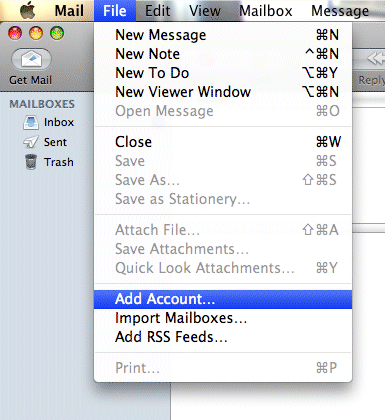
Step 2
In this and the following steps we will use the information for the fictitious person Susan Jones.In the window that pops up, enter the following configuration information:
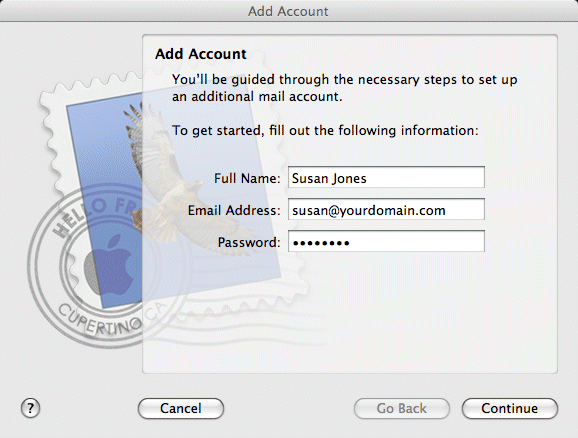
In Susan Jones' case, she would enter the following:
- Full Name: Susan Jones
Keep this short and simple with minimal punctuation. Just your name is all that you should enter here. Avoid also entering your company name, department, etc. - Email Address: susan@yourdomain.com
- Password: password
Obviously you will enter your own password in this field -- the one that you were sent, or the one that you used when creating this email account in the control panel. Passwords are case-sensitive, which means that the passwords "password", "PASSWORD" and "pAsSwOrD" are three different passwords, not the same password. Also keep in mind that some letters and numbers look very similar in some fonts, particularly the lower-case "el", the upper-case "eye", the upper-case "oh" and the number zero or nought.
Step 3
On the next screen, select "POP" from the drop-down list next to "Account Type" and enter the following configuration information: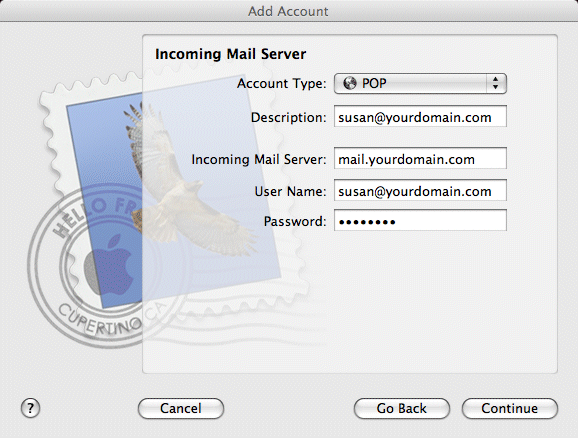
In Susan Jones' case, she would enter the following:
- Description: susan@yourdomain.com
This can be anything you want, but we suggest entering the email address for this account. - Incoming Mail Server: mail.yourdomain.com
- User Name: susan@yourdomain.com
Again, please note that this is your full email address, not just the part to the left of the @ sign. Also note that there is no single standard for naming this item. While NinerNet uses the term "user ID", some programs will refer to it as "user name", "username", "log-in name", "account name", etc. - Password: password
The password you entered in the previous step will already be entered here.
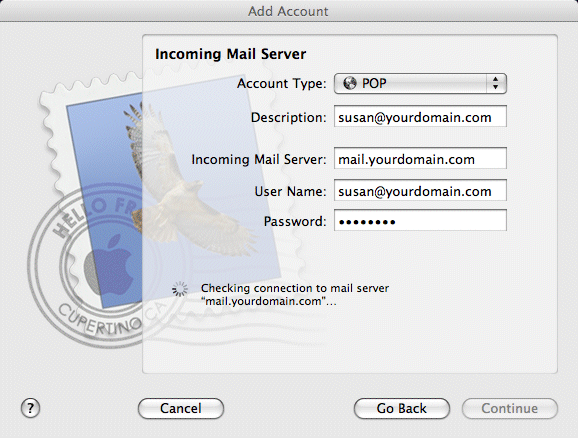
If any error messages are displayed, please read them carefully and then follow the instructions or suggestions displayed in order to correct the issue. Some possible explanations for problems include:
- It may be that you have incorrectly typed the name of the incoming mail server. Please check your spelling carefully and correct it if necessary.
- You may be disconnected from the Internet. Please connect to the Internet.
- Your Internet connection may be down temporarily. Please wait a minute or two before continuing.
Step 4
On the next screen, ensure that the "Use Secure Sockets Layer (SSL)" box is deselected -- i.e., has no tick or check mark in it -- and select "Password" from the drop-down list next to "Authentication".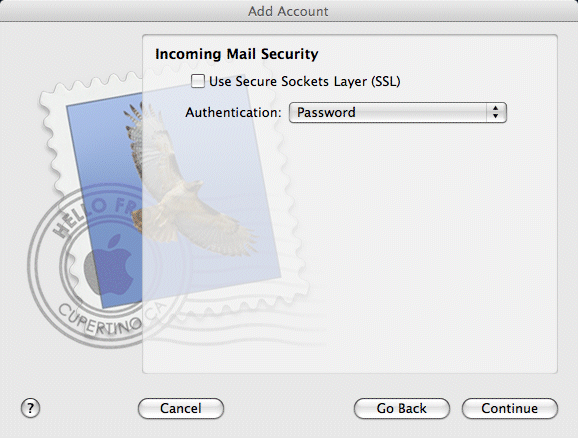
Click the "Continue" button.
Step 5
On the next screen, enter the following configuration information: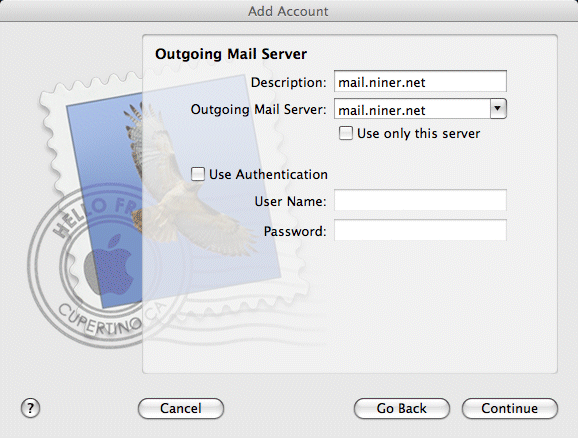
In Susan Jones' case, she would enter the following:
- Description: mail.niner.net
This can be anything you want, but we suggest entering "mail.niner.net". - Outgoing Mail Server: mail.niner.net
In most cases you should deselect -- i.e., clear the tick or check mark from -- the "Use only this server" box.
Click the "Continue" button. Apple Mail will now attempt to connect to the server.
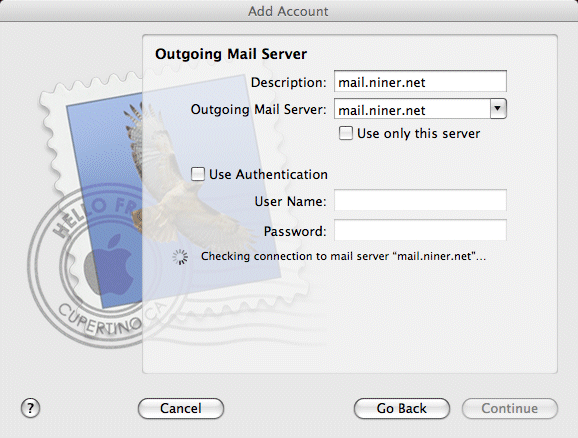
If any error messages are displayed, please read them carefully and then follow the instructions or suggestions displayed in order to correct the issue. Some possible explanations for problems include:
- It may be that you have incorrectly typed the name of the outgoing mail server. Please check your spelling carefully and correct it if necessary.
- You may be disconnected from the Internet. Please connect to the Internet.
- Your Internet connection may be down temporarily. Please wait a minute or two before continuing.
If you were presented with an error message and you're sure that everything has been entered correctly, please click the "Continue" button anyway. Move on to the next step.
Step 6
On the next screen, ensure that the "Use Secure Sockets Layer (SSL)" box is selected -- i.e., has a tick or check mark in it -- and select "None" from the drop-down list next to "Authentication".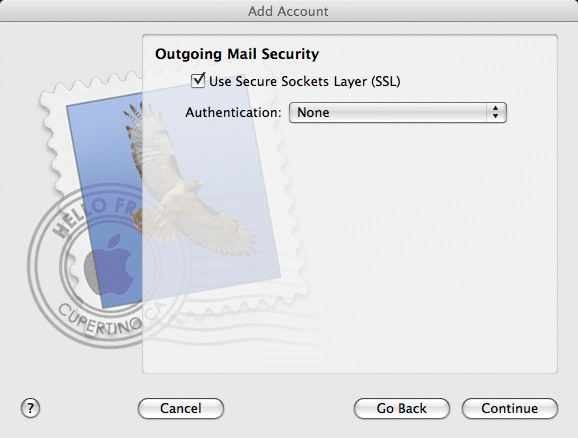
Click the "Continue" button.
Step 7
On this screen, all the settings you've entered are displayed. If you need to change anything, click the "Go Back" button the appropriate number of times to go back to the step where you need to change something. Then ensure that the "Take account online" box is selected -- i.e., has a tick or check mark in it -- and...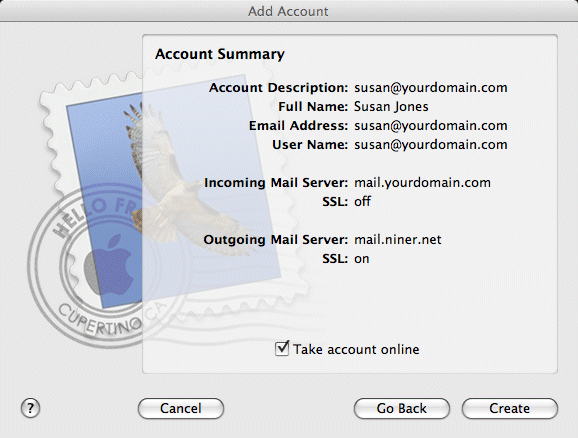
... click the "Create" button to create your email account in Apple Mail.
You're not finished yet though. Please complete the rest of the steps below before you start using your email account.
Step 8
In the main window of Apple Mail, ctrl+click the account you just created (or ctrl+click the "Inbox" if this is the only account in Mail) in the sidebar and select "Edit 'susan@yourdomain.com'..." (where "susan@yourdomain.com" would be your own email address) from the pop-up menu.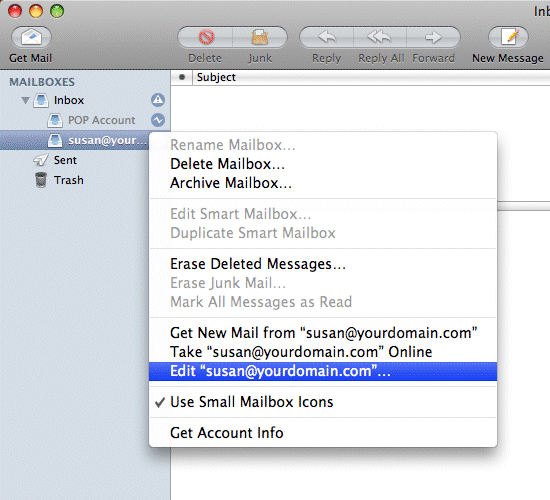
Step 9
On the "Account Information" tab (displayed by default), click the arrow of the drop-down list to the right of "Outgoing Mail Server (SMTP)" (where it should say "mail.niner.net") and select "Edit Server List...".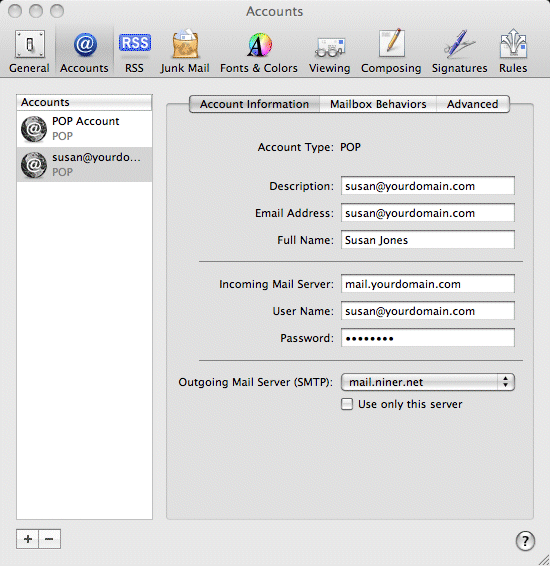
Step 10
In the window that pops up, select the "mail.niner.net" server that you created earlier with a single click, click the "Advanced" tab, then change the settings to look like the ones in the illustration below: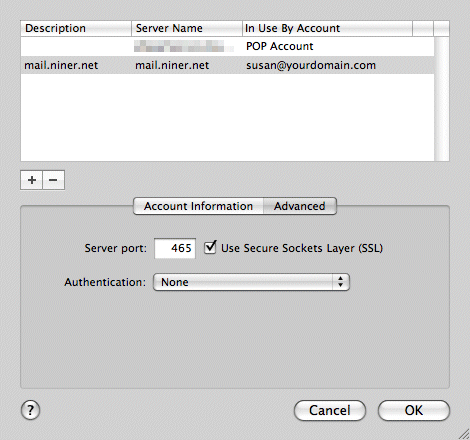
- Server port: 465
Ensure that the "Use Secure Sockets Layer (SSL)" box is selected -- i.e., has a tick or check mark in it. - Authentication: None
Step 11
Now click the "Advanced" tab and ensure that the configuration settings look like the ones below: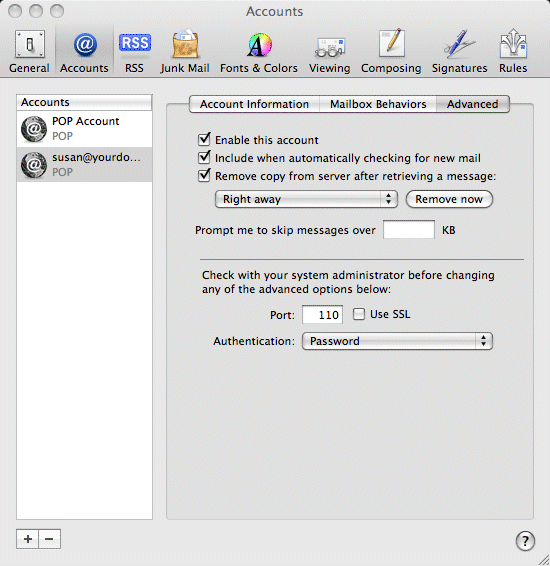
- Select "Right away" from the drop-down menu under "Remove copy from server after retrieving a message" box. You may select another option if you wish, but we recommend against it to ensure that your email account on the server does not fill up. If your email account fills up, all incoming email will be returned to sender.
- Port: 110
Ensure that the "Use SSL" box is deselected -- i.e., has no tick or check mark in it. - Authentication: Password
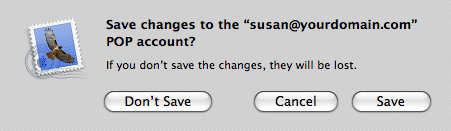
... and click the "Save" button to save your changes.
Note
If you use your own domain for the outgoing (SMTP) mail server, you may receive a warning from Apple Mail that looks like the one below when sending email from this account for the first time: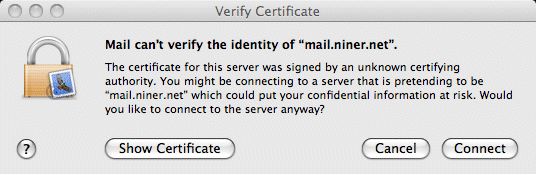
If you see this, please make sure that you click the "Connect" button -- or switch to using "mail.niner.net" for the SMTP server. If you click the "Cancel" button, you will not be able to send email.
Home